

CScalp Main Menu
Date of update: 20.09.2026
Upon launching the CScalp trading terminal, the main application window appears. This workspace contains everything you need to trade. In this article, we will cover the terminal’s built-in functionality and explain the purpose of each interface element.
Interface Overview
The CScalp scalping terminal interface includes all the essential elements required for trading. Below, we will break down each area of the workspace in detail.
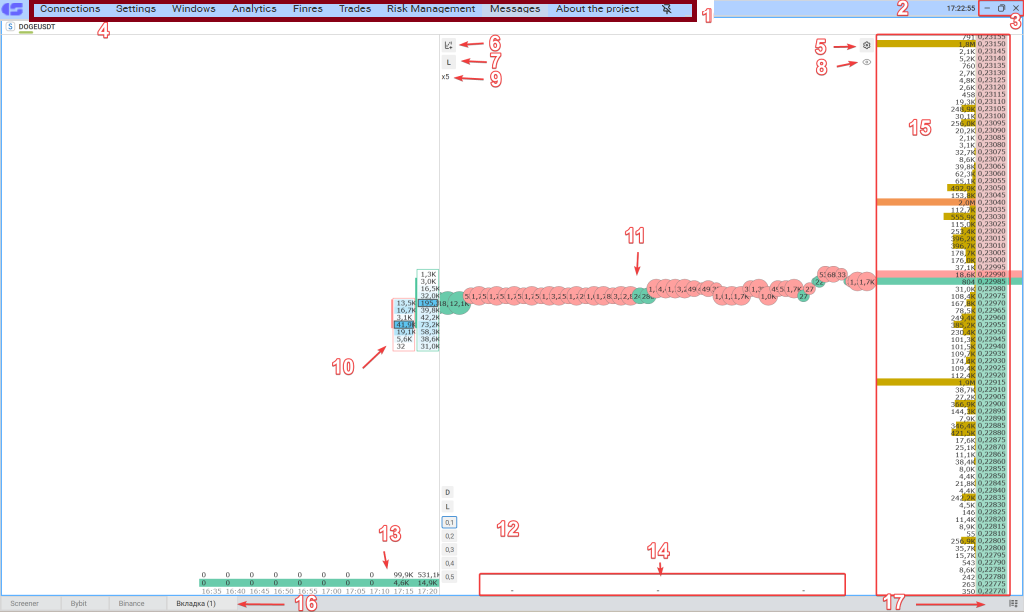
1. Main Menu
- “Connections” button: Connect to and configure trading venues, monitor market data in View-Only Mode, and manage proxy server settings.
- “Settings” button: Customize hotkeys, color themes, sound notifications, export/import settings, and change your PIN code.
- “Windows” button: Add new order books, charts, screeners, tabs, workspaces, the Privod Bondar diary, the Crypto diary, and the Mini Watchlist.
- “Analytics” button: Access the notification feed, your Watchlist, and trading signals.
- “Finres” (Financial Result) button: Open the financial results window.
- “Trades” button: Open the trade history window.
- “Risk Manager” button: Enable and configure risk management tools.
- “About” button: Contact Support via chat, access the User Guide, view trading tutorials, or visit the feedback page.
- 📌 (Pin) button: Toggle the “Always on Top” mode.
Status & Window Controls
- 2. UTC Time: Right-click (RMB) to switch between Moscow Time (UTC+3) and UTC (UTC+0).
- 3. Window Controls:
- “_” button: Minimize the window to the taskbar.
- “Maximize” button: Expand the window to full screen.
- “X” button: Close the terminal.
Order Book & Workspace Controls
- 4. Open Order Books: Can be moved or closed. Displays the ticker/name of the selected trading instrument.
- 5. “Settings” Icon: Opens the instrument configuration window.
- 6. Chart Icon: Opens the chart window for the selected instrument.
- 7. Currency Toggle button: Switch the order book display between lots and USD ($).
- 8. View-Only Indicator: Signals that the user is in View-Only Mode and cannot execute trades.
- 9. Price Step Multiplier Indicator: Displays the current price step scaling (x10, x100, x1000).
Trading Data & Cluster Metrics
- 10. Max Volume: The maximum volume traded during the selected cluster timeframe.
- 11. Ticks: The number of executed trades for the selected instrument.
- 12. Working Volume & Average Price Parameter: Displays the working volume for the instrument (in lots or USD) and features the F/D/L average price calculation toggle.
- 13. Total & Delta Volume: Displays the total volume for the selected cluster timeframe. In the example, values like 4.6K and 14.9K represent the Delta (the difference between buyer and seller volumes) for the chosen timeframe.
- 14. Ping/Latency: The execution time (in ms) for sending orders to the exchange.
- 15. Order Book: The depth of market (DOM) showing buy and sell orders. Ask | Bid displays buyers and sellers separated by a vertical line “|” when there is no spread.
- 16. Open Tabs: Can be renamed or deleted. Read more [here].
- 17. Context Menu: Allows you to quickly add extra workspaces, tabs, charts, and order books.
Join the CScalp Trading Community
Join our official trader's chat. Here you can communicate with other scalpers, find trading soulmates and discuss the market. We also have an exclusive chat for crypto traders!
Don't forget to subscribe to our official CScalp news channel, use trading signals and get to know our bot.
If you have any questions, contact our support team: support@in.fsr-develop.com.
You can also subscribe to the CScalp TV YouTube channel.
JOIN OUR CHAT